How to Record Shopify Deposits in QBO with A2X

If you’re using an A2X integration between your Shopify store and QuickBooks Online, you’re used to seeing a matching A2X journal entry for each Shopify payout deposit on your bank feed. That’s exactly how it’s supposed to work! No guessing which Shopify orders belong to which bank deposit - it’s all sorted out in A2X where all the Shopify transaction data is collected and summarized into journal entries synced to QuickBooks Online. These summarized A2X Journal entries record all the components of your Shopify sales into the right categories in QuickBooks Online and will “match” with a Shopify Payout deposit on your connected bank feed. Of course, this perfect workflow depends on setting up the A2X integration and mapping to QuickBooks Online correctly in the first place, and maintaining and updating the mapping when something new is sent over from Shopify that hasn’t been mapped to QuickBooks before. So, what happens when you’re working through your bank feeds in QuickBooks Online and can’t find a matching A2X Journal entry recorded in the books? There are usually two scenarios. Both can be resolved by logging into your A2X account. Let’s take a look at how to record Shopify deposits in QBO with A2X, and what to watch out for!
Scenario #1: No matching A2X Journal entry for a new Shopify deposit?
Is the Shopify payout within the past day or two? A Shopify payout deposit can hit your bank account before the Shopify sales data is processed in A2X and posted as a journal entry to QuickBooks Online.
If the Shopify deposit in your bank feed is only a day or two old, keep in mind that A2X journal entries can take a few days to post to QuickBooks Online.

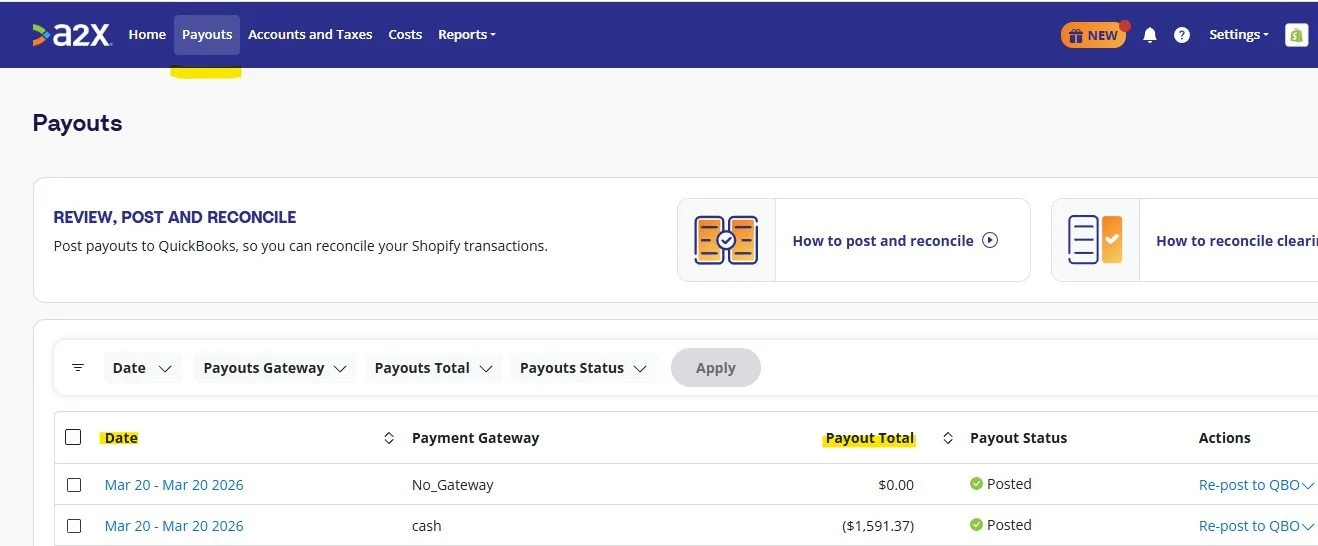
If you want to check A2X to see if the payout Journal Entry is in progress, go to the Payouts section in A2X, and see if there are any pending payouts for the same amount of your deposit. If there is a matching payout in progress, just hang on for a few days and it will be ready to post To QuickBooks. What if you don’t see a pending Payout in A2X matching the Shopify deposit to your bank account? First, reference the date range in the Payouts window to see when the most recent date posted was. If your bank deposit was after that date, it has not yet been processed in A2X. In the example above, the deposit of $1,399.23 on March 23, 2026 is after the last payout reflected in A2X.
You can confirm the status of the Shopify Payout from your Shopify account. In Shopify, navigate to Finance > Payouts, where you’ll find a list of all deposited and scheduled payouts. In the example deposit of $1,399.23, we find the deposit listed in the Payouts window in Shopify.
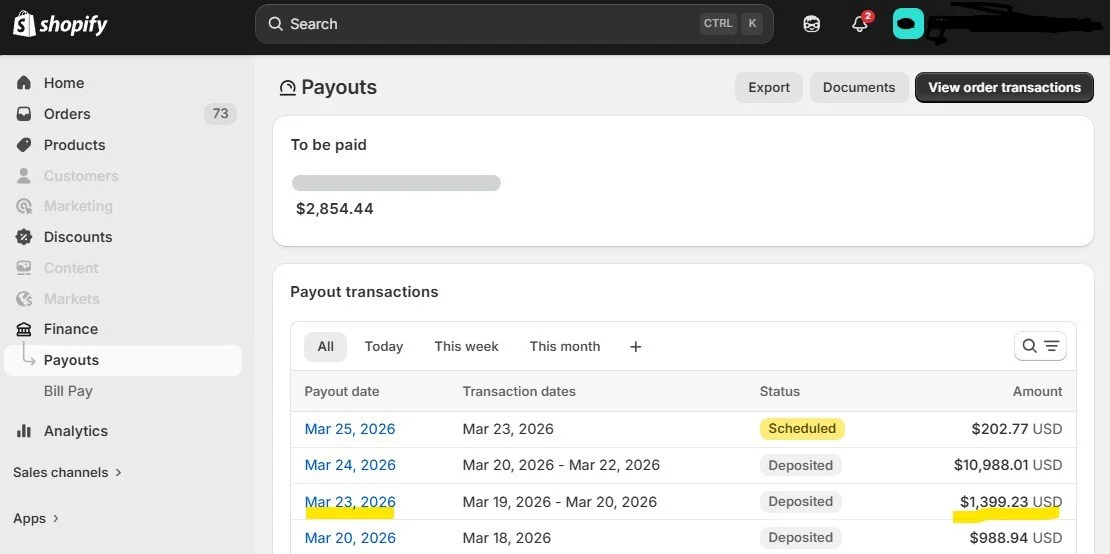
In this example, everything looks good, and we’ll just wait for the A2X journal entry for this payout to hit QuickBooks Online and match our bank feed deposit transaction.
Scenario #2: No matching A2X Journal entry for an older Shopify deposit
Has a Shopify bank deposit been sitting in your QuickBooks bank feed for a week or so, and still doesn’t have a matching A2X Journal entry? It’s time to investigate!
Let’s take a look at an example. Below you can see a Shopify Payout transaction for $517.15 from a week ago. We would expect to see a matching A2X Journal entry by now, but there’s no match found in QBO:

To resolve this, you’ll want to log into A2X to take a look at the Payouts section.
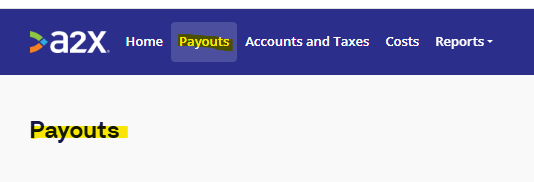
From there, you'll search for the deposit amount and date, to see if there is a matching pending (not complete) payout. In this case, there is:
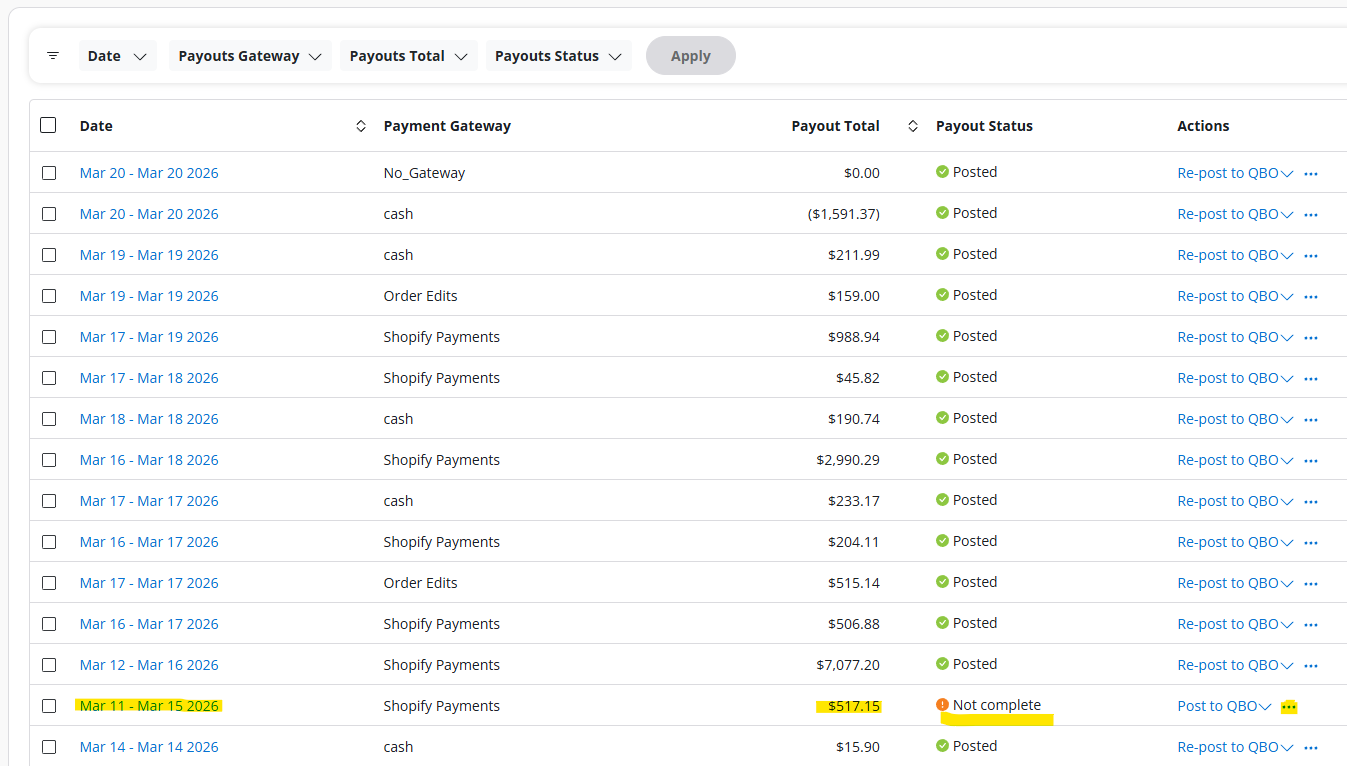
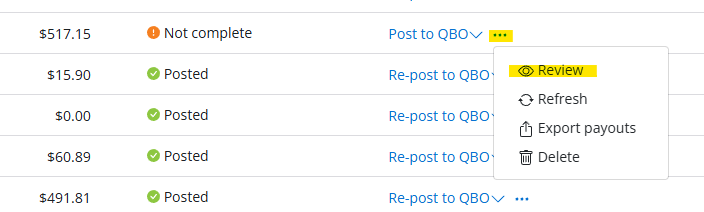
You'll find a Shopify Payout for $517.15 marked as "not complete" for date range: Mar 11 - Mar 15 2026. Select the " ..." on the far right in the "Action" column.
Next, select "Review" from the drop-down options:
You'll want to review the details of this payout, by selecting the drop-down arrow in the Review window:
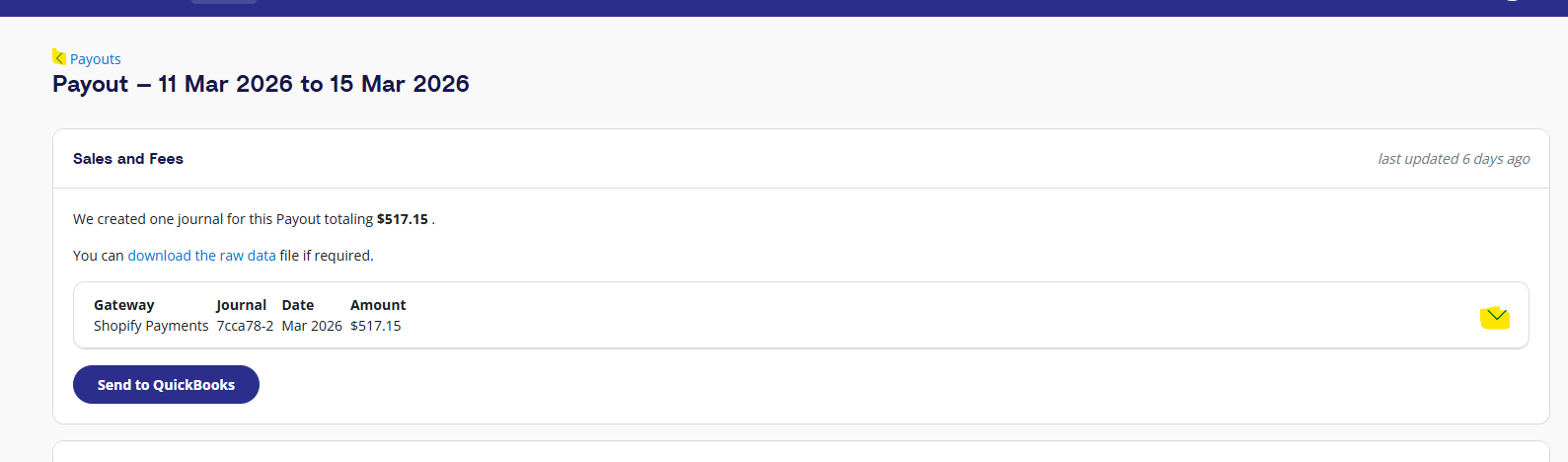
From the payout details, you'll see a line that says "not mapped". This new Shopify item is preventing the payout from posting - until this Shopify item is mapped in the "Accounts and Taxes" section in A2X.
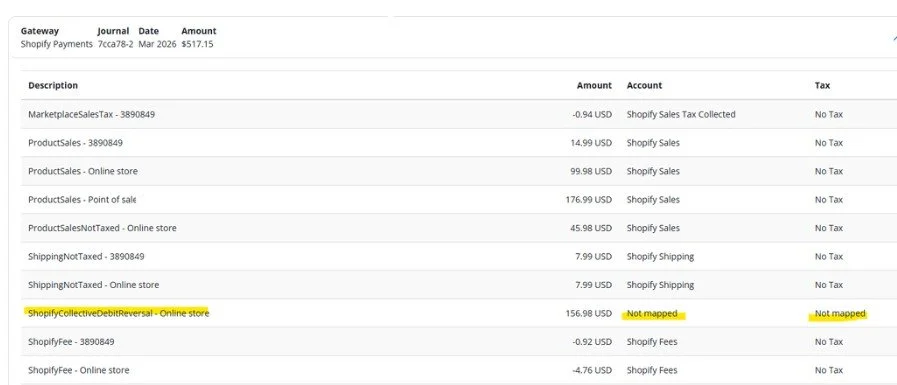
Note what the new item is called, so you can reference it in the "Accounts and Taxes" section next. [ "ShopifyCollectiveDebitReversal - Online store" ]
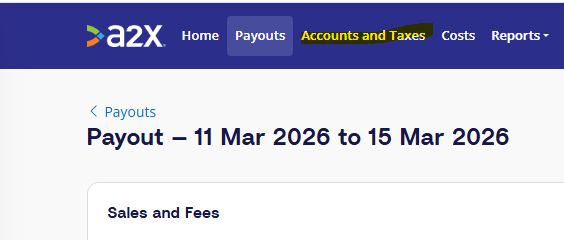
From the top menu in A2X, select "Accounts and Taxes".
As you scroll down the "Accounts and Taxes" page, you'll see a highlighted row with a description matching the payout item: "ShopifyCollectiveDebitReversal - Online store"
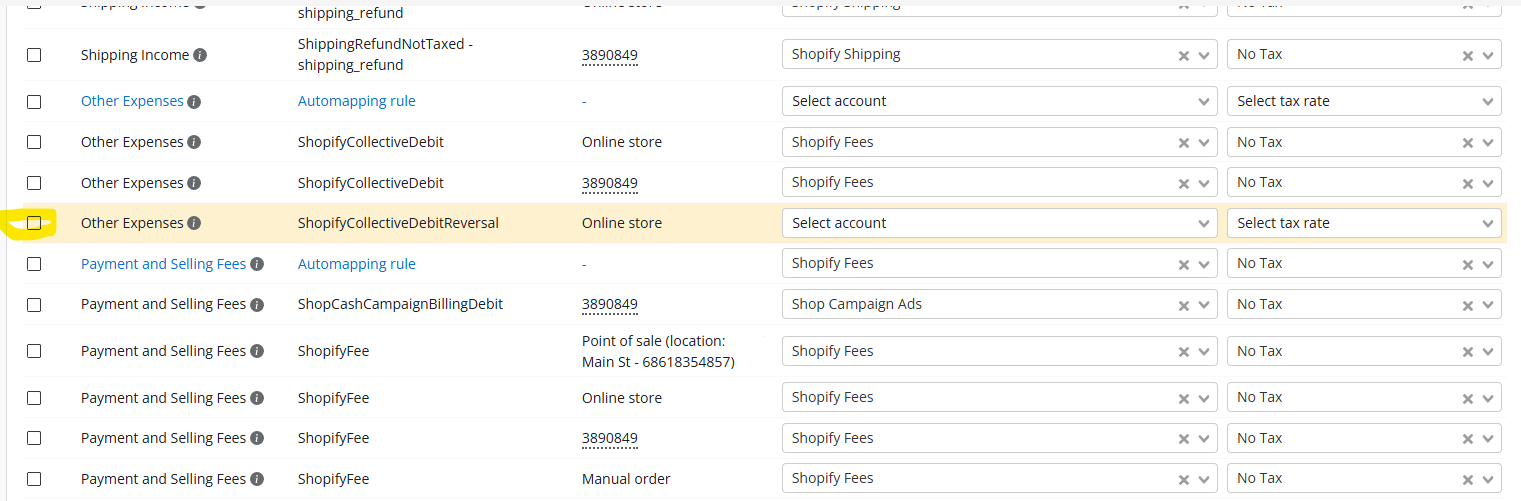
A good reference point if you’re unsure how to map a new line item to QBO is to take a look at the lines around the highlighted line to see if they have similar & related descriptions.
In this case, the item 2 rows above the highlighted row is also for "ShopifyCollectiveDebit", and this new item is a reversal of the same type of expense.
We’ll map the new item to the same categories as that related item.
Select account: Shopify Fees, Select tax rate: No Tax.
After you make the update to the Accounts and Taxes, you'll need to Save the new mapping in the top right corner, before moving on to fix the Payout.
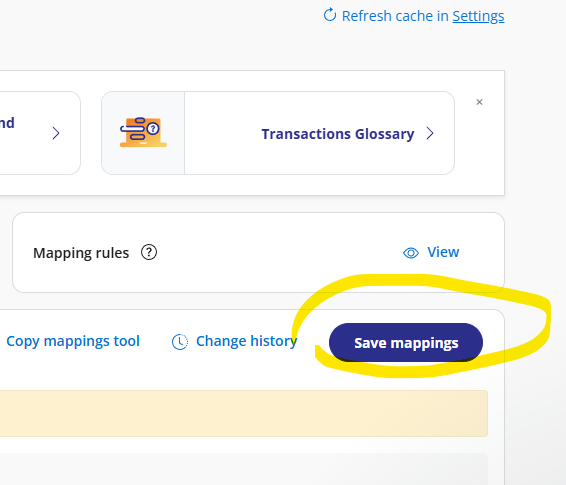
Once the mapping is saved, you'll want to head back over to the Payouts section. When you scroll to find that $517.15 payout, you'll see that it's now marked as "ready to post".

You can then manually post it to QBO, where you'll match it to the bank feed.

Closing & Resources
Now you’ll know just how to record Shopify deposits in QBO with A2x, and what to do if you don’t find a matching A2X journal entry in QuickBooks for a Shopify deposit. Do you need some more expert guidance? If you are ready to work with a trusted and reliable Shopify bookkeeping team, you can use this link to learn more about Mavency to see if we are a good fit for working together. For some additional support for your DIY Shopify bookkeeping, check out the free and paid resources linked below:
A2X - Sign up to use A2X for your Shopify to QuickBooks Online integration and receive 20% off your first 6 months by using our discount code: A2XMAVENCY
We hope to connect with you soon!